
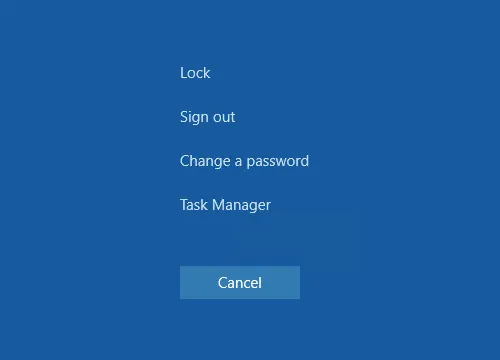
Press Ctrl+Alt+End inside the Remote Desktop window. It opens the remote computer's security screen (Lock, Sign out, Change a password, Task Manager), which is what Ctrl+Alt+Del opens on your own PC. If you have no End key, or you're on a Mac or a phone, one of the other methods below will work.
Why Ctrl+Alt+Del Opens Your Own PC Instead
Windows reserves Ctrl+Alt+Del for the computer you are physically using. No app can capture it, not even Remote Desktop, which is what makes it a safe way to reach the real sign-in screen. So Microsoft gave Remote Desktop its own shortcut: the remote computer treats Ctrl+Alt+End exactly like Ctrl+Alt+Del. If you're new to Remote Desktop, start with what RDP is and how it works.
Quick Reference
| You are on | What to press |
|---|---|
| Windows PC (Remote Desktop Connection or Windows App) | Ctrl+Alt+End |
| Laptop with no End key | Ctrl+Alt+Fn and the key marked End (often the right arrow) |
| Mac, iPhone, iPad or Android | On-Screen Keyboard or the Run-box command (Methods 2 and 4) |
| You only want Task Manager | Ctrl+Shift+Esc |
| A remote session inside another one | Method 4 inside the inner session (see below) |
Method 1: Press Ctrl+Alt+End (Windows)
This is Microsoft's own shortcut. It works in Remote Desktop Connection (mstsc) and in the newer Windows App, in full screen and in a window.
- Click once inside the Remote Desktop window so it has the keyboard.
- Hold Ctrl and Alt, then press End.
- The security screen opens on the remote computer. Pick what you need, or click Cancel to go back to the desktop.
Many laptops have no separate End key. Hold Ctrl+Alt+Fn and press the key with "End" printed on it, which is often the right arrow.
Method 2: The On-Screen Keyboard
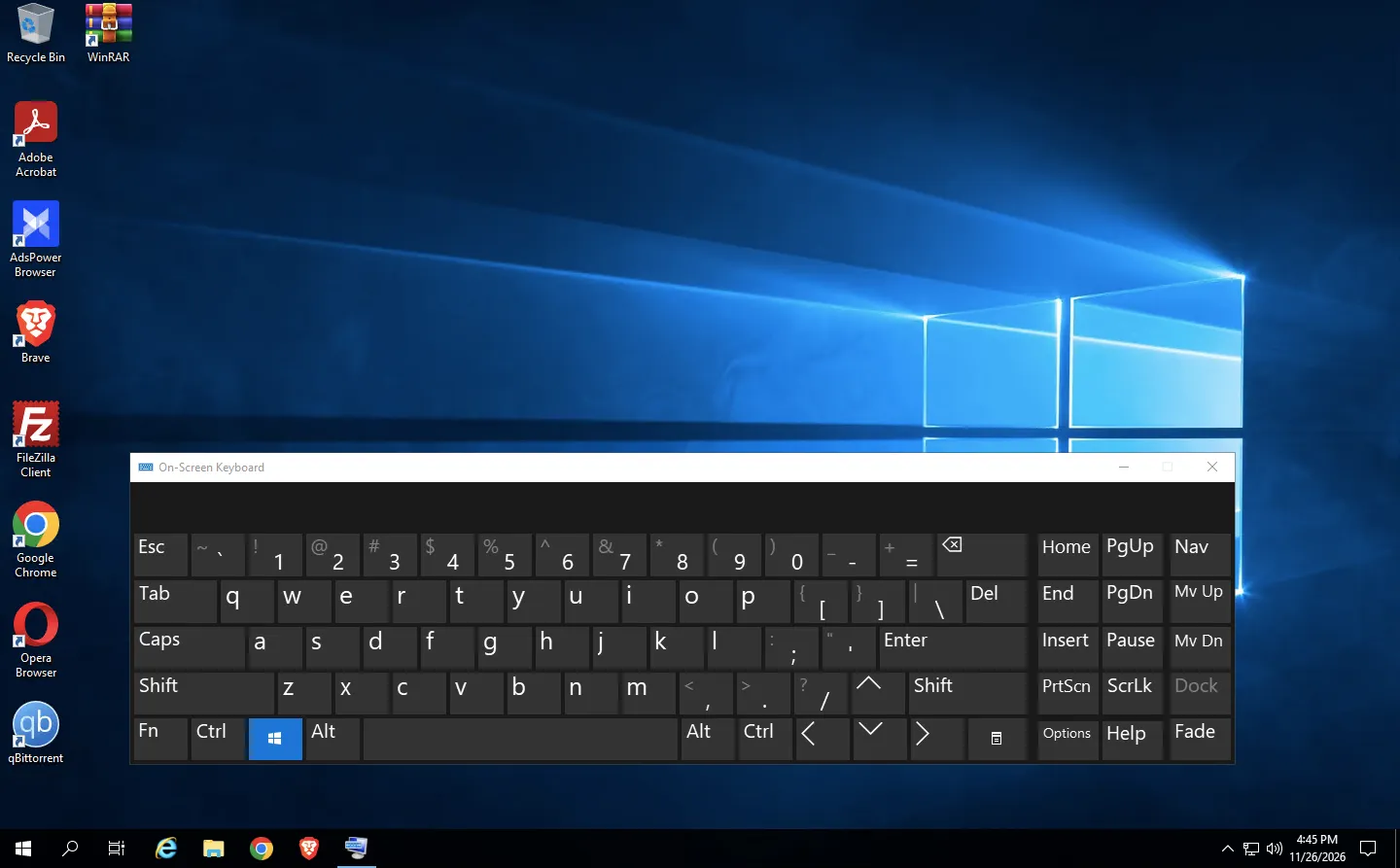
Use this when the keys don't get through, on a laptop with an odd layout, or on a Mac. The On-Screen Keyboard runs inside the remote Windows, so your own device can't catch the keys.
- In the remote session, press Win+R (or open Start), type
oskand press Enter. - Hold Ctrl and Alt on your real keyboard, then click Del on the On-Screen Keyboard.
- On a phone or tablet with no real keyboard, use Method 4 instead.
Method 3: Ctrl+Shift+Esc for Task Manager
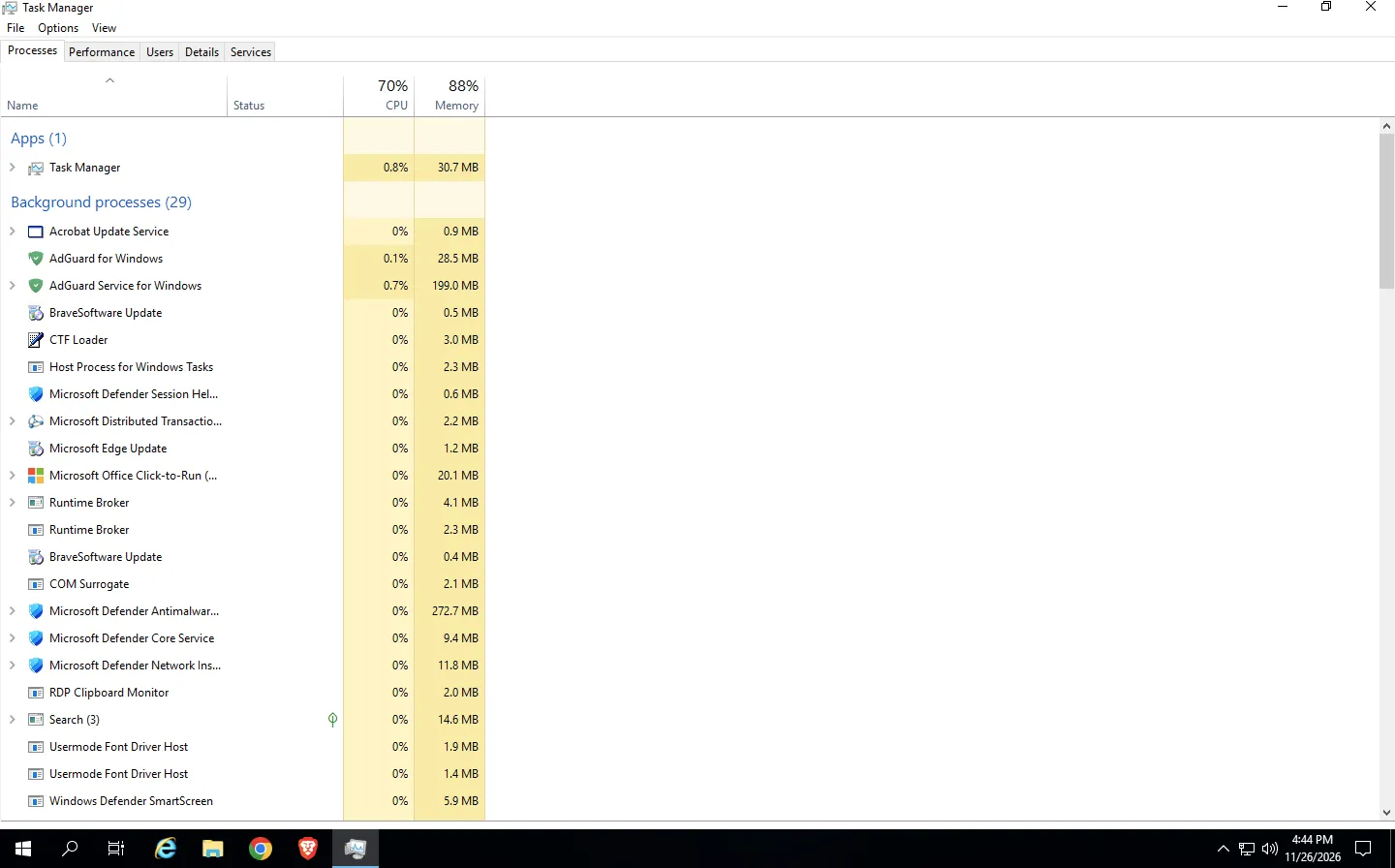
Most people press Ctrl+Alt+Del only to reach Task Manager. Ctrl+Shift+Esc opens it straight away inside the RDP session, with no security screen in between. You can also right-click the taskbar and choose Task Manager.
Method 4: Open the Security Screen From the Run Box
This works from any device, because you only type a command. In the remote session, press Win+R (or search Start for "Run"), paste this and press Enter:
explorer.exe shell:::{2559a1f2-21d7-11d4-bdaf-00c04f60b9f0}In PowerShell, this does the same:
(New-Object -ComObject Shell.Application).WindowsSecurity()If you need it often, right-click the desktop, choose New > Shortcut and paste the first command as the location.
Ctrl+Alt+Del in Remote Desktop on a Mac, iPhone or Android
Microsoft's Windows App is the Remote Desktop app on all of these, and Microsoft documents no Ctrl+Alt+Del key for it on Mac, iOS or Android.
- Mac: try Fn+Control+Option+Delete in Windows App. If it doesn't work on your Mac, use Method 2 or Method 4.
- iPhone, iPad, Android: tap the keyboard icon in the connection bar to type, then use Method 4. For Task Manager alone, open Start in the remote desktop and search "Task Manager".
New to connecting from these devices? Our step-by-step RDP connection guide covers each one.
Inside a Remote Session Within a Remote Session
Microsoft says Remote Desktop shortcuts don't work in nested sessions: Ctrl+Alt+End always goes to the first remote computer. To reach the second one:
- In the second (inner) session, use Method 4, or Ctrl+Shift+Esc for Task Manager. This is the simplest way.
- Or open the On-Screen Keyboard in the first session, hold Ctrl+Alt on your real keyboard and click End on it.
How to Change Your Password in Remote Desktop
- Press Ctrl+Alt+End (or use Method 4).
- Click Change a password.
- Type your old password, then the new one twice, and press Enter.
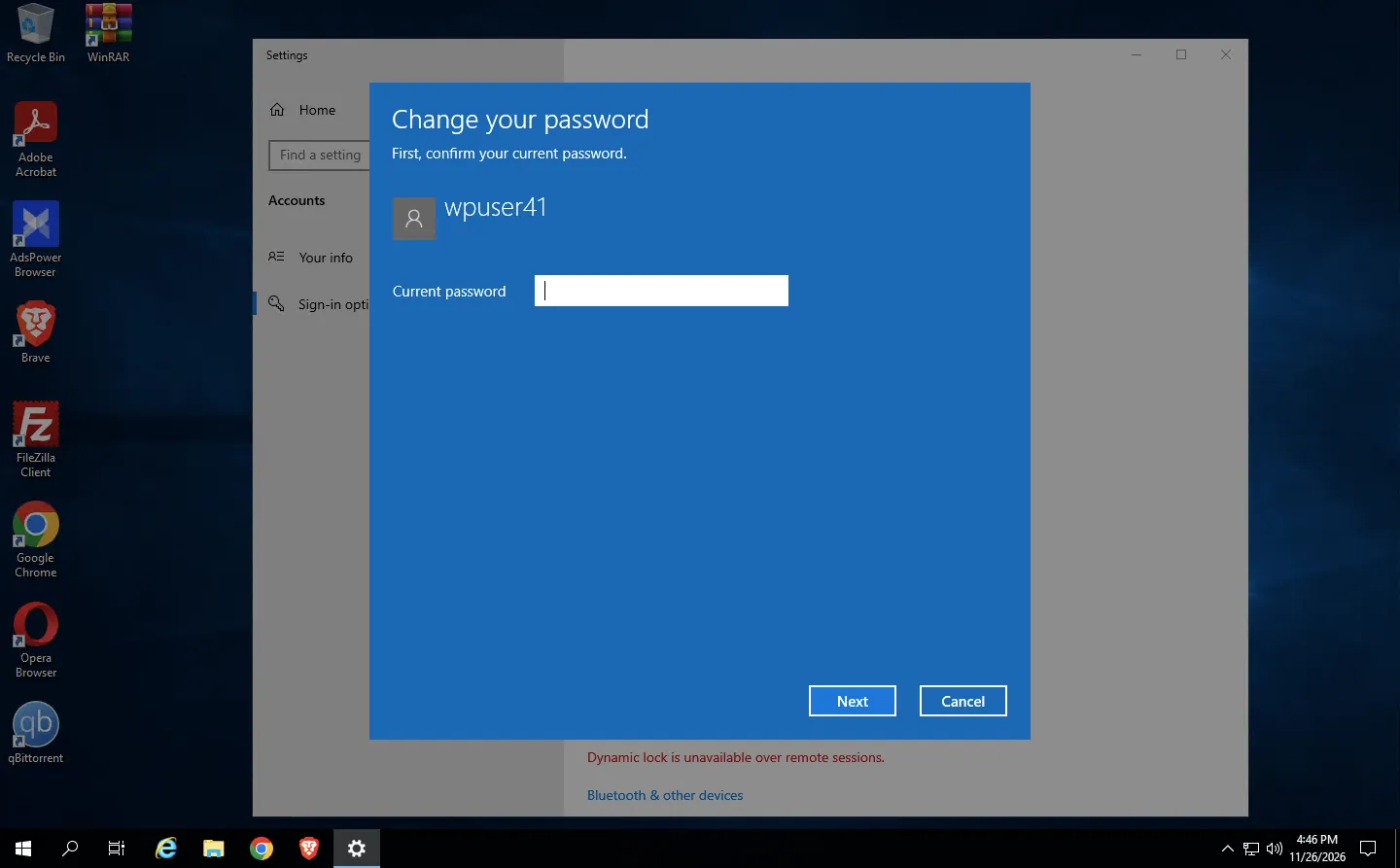
You can also do it from Settings: open Settings > Accounts > Sign-in options, click Password, then Change. Windows asks for your current password first.
Use at least 12 characters that you don't use anywhere else. Bots try common passwords on RDP servers all day. If you need full control of the server, including its users and settings, choose a USA RDP plan with admin access.
Ctrl+Alt+Del Not Working in Remote Desktop? Common Fixes
- Nothing happens: click inside the Remote Desktop window first. The shortcut only goes to the window that has the keyboard.
- No End key: add Fn (Method 1), or use the On-Screen Keyboard.
- Another remote app (AnyDesk, TeamViewer, Chrome Remote Desktop, Remmina): these don't use Ctrl+Alt+End. Look in the app's toolbar or menu for a "Send Ctrl+Alt+Del" option.
- Keyboard or macro software (AutoHotkey, gaming keyboard apps) can swallow the keys. Pause it and try again.
- Still stuck: Method 4 always works, because it doesn't depend on key forwarding at all.
Frequently Asked Questions
How do I press Ctrl+Alt+Delete in RDP?
Press Ctrl+Alt+End inside the Remote Desktop window. The remote computer treats it as Ctrl+Alt+Del and opens its security screen.
How do I send Ctrl+Alt+Del on a Windows 11 or Windows 10 remote desktop?
The same way on both: Ctrl+Alt+End. It also works on Windows Server 2019 and 2022, which most rented RDPs run.
How do I send Ctrl+Alt+Del from a Mac?
Try Fn+Control+Option+Delete in Windows App. If that doesn't work, open the On-Screen Keyboard inside the session, or run the Run-box command in Method 4.
Why is Ctrl+Alt+Del not working in Remote Desktop?
It isn't meant to. Windows always keeps Ctrl+Alt+Del for your own computer. Use Ctrl+Alt+End, and click inside the session window first.
How do I change my password in a remote desktop session?
Press Ctrl+Alt+End, click Change a password, then enter your old password and the new one twice.